vim
Modes
| Key | Mode |
|---|
i | Insert at current cursor position |
I | Insert at beginning of line |
a | Insert after current cursor position |
A | Insert at end of line |
o | Insert at new line after cursor position |
O | Insert at new line before cursor position |
r | Replace char at current cursor position |
R | Replace (overwrite) mode |
ESC | Normal |
Vim as a Language
[count]operation[modifier|count]{motion}
Operation (Verbs)
| Command | Meaning |
|---|
d | delete |
c | change |
y | yank (copy) |
v | visually select (V for line) |
Modifiers
| Modifier | Meaning |
|---|
i | inside |
a | around |
| number | e.g.: 1, 2, 10 |
t | search (stop before it) |
f | search (stop on it) |
/ | find regex |
Motion (Nouns)
| Noun | Meaning |
|---|
w | word |
s or ) | sentence |
p or } | paragraph |
t | tag (HTML/XML) |
b | block (programming) |
These key can also be used for navigation.
Navigation
By Line or Character
| Key | Movement |
|---|
h | left |
j | down |
k | up |
l | right |
^ or 0 | beginning of line |
$ | end of line |
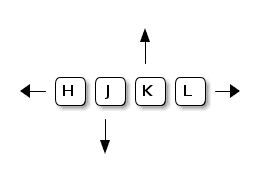
Hint: j looks like an arrow pointing down
By Word
| Keys | Movement |
|---|
w | next word |
W | next word, don’t stop at punctuation |
b | previous word |
B | previous word, don’t stop at punctuation |
By Page
| Keys | Movement |
|---|
ctl-b | page up |
ctl-f | page down |
Begin and End of Document
| Keys | Movement |
|---|
gg or :1 | first line |
G or :$ | last line |
Go to Line
| Keys | Movement |
|---|
<line-no>gg, <line-no>G or :<line-no> | go to line |
Editing
Cut / Delete
| Key | Action |
|---|
x or dl | Delete (cut) char at cursor |
X or dh | Delete (cut) char before cursor |
dw | Delete (cut) word at cursor |
db | Delete (cut) word before cursor |
dd | Delete (cut) current line |
D or d$ | Delete (cut) to end of line |
d0 | Delete (cut) to beginning of line |
Copy / Yank
| Key | Action |
|---|
yw | Yank (copy) word at cursor |
yb | Yank (copy) word before cursor |
yy | Copy line |
Paste / Put
| Key | Action |
|---|
p | Paste after cursor |
P | Paste before cursor |
Change Text
| Key | Action |
|---|
c<motion> | Change text |
C | Change text until end of line |
cc | Change entire line |
Join Lines
| Key | Action |
|---|
J | Join lines with spaces added |
gJ | Join lines without additional spaces |
Change Case
| Key | Action |
|---|
gU<motion> | To upper case |
gu<motion> | To lower case |
g~<motion> | Toggle case |
~ | Toggle case of character at cursor |
Registers
- Unnamed (default):
""
- holds text from last
d, c, s, x and y
- Numbered:
"0 - "9
"0 holds last yanked (y) text"1 holds last cut (d) or changed (c) text"1 shifts with each d and c
- Named:
"a - "z
- …
- User upper-case (
"A - "Z to append to the content of the register)
- Black-hole:
"_
- doesn’t store removed text in a register
[count][register]operation
or
[register][count]operation
| Key | Action |
|---|
:reg [register(s)] | Show content of listed registers. Show all if no register provided |
Search and Replace
Search on Line
| Key | Action |
|---|
f<char> | Search forward on line |
F<char> | Search backwards on line |
t<char> | Go forward to stopping before char |
T<char> | Go backward to stopping after char |
; | Continue search in original direction |
, | Continue search in opposite direction |
These commands are considered as motions and can be used
with operations like d, c and y.
Search in Document
| Key | Action |
|---|
/<word> | Search forwards for word |
?<word> | Search backward for word |
* | Search forward for word under cursor |
# | Search backward for word under cursor |
n | Go to next occurrence in search direction |
N | Go to previous occurrence in search direction |
Replace
General command syntax:
:[range]/<old>/<new>/[flags]
The separator / can be replaced by another symbol (e.g. # or |)
Range:
<number>: line with number<number-1>,<number-2>: from line number-1 to number-2/<pattern-1>/,/<pattern-2>/: from match of pattern-1 to pattern-2.: current line$: last line% or 1,$: entire file
Range variants can be combined
Flags:
g: global (all occurrences in line)c: confirm each replacementi: ignore case
Text Objects
- Word:
w (or W with punctuation)
- Sentence:
s
- Paragraph:
p
- Block:
b
- Tag:
t
- Various delimiters:
{, ], ), <, ",…
Include or exclude delimiter
- Apply operator to object including separators:
<operator>a<object>
- Apply operator to object without separators:
<operator>i<object>
Examples:
daw: Delete A Wordciw: Change Inner Word (without delimiter)
Visual Mode
| Key | Action |
|---|
v | Characterwise visual mode |
V | Linewise visual mode |
ctl-v | Blockwise visual mode |
gv | Switch to visual mode with last selection |
o | Switch to opposite side of selection |
O | Switch to opposite side of selection on same line (in block selection mode) |
Buffers
| Key | Action |
|---|
:buffers, :b or :ls | List open buffers |
:b <number> or :b <name> | Show buffer in current window |
:bn | Show next buffer |
:bp | Show previous buffer |
:bf | Show first buffer |
:bl | Show last buffer |
:badd <name> | Create new buffer |
:bd <number> or :bd <name> | Close buffer |
:wall | Save all buffers |
:qall! | Close all buffers without saving |
:bufdo <cmd> | Run command on each open buffer |
Windows
| Key | Action |
|---|
:sp [file] or <ctl>-w s | Split window horizontally |
:vs [file] or <ctl>-w v | Split window vertically |
<ctl>-w <ctl>-w | Change to next window |
:q or <ctl>-w q | Close window |
:only, :on or <ctl>-w o | Close all other windows |
:ba or :ball | Open all buffers in separate windows |
:windo <cmd> | Run command on each windows |
Navigate between Windows
| Key | Action |
|---|
<ctl>-w h | Navigate left to window |
<ctl>-w j | Navigate down to window |
<ctl>-w k | Navigate up to window |
<ctl>-w l | Navigate right to window |
Move Windows
| Key | Action |
|---|
<ctl>-w H | Move window to left |
<ctl>-w J | Move window down |
<ctl>-w K | Move window up |
<ctl>-w L | Move window to right |
Resize Windows
<ctl>-w +: Increase window size vertically<ctl>-w -: Increase window size vertically<ctl>-w -: Decrease window size vertically<ctl>-w <: Increase window size horizontally<ctl>-w >: Decrease window size horizontally<ctl>-w _: Maximize height of window<ctl>-w |: Maximize width of window<ctl>-w =: Make all windows the same size
Macros
| Key | Action |
|---|
q<register> | Record macro and save it in the register |
q | Stop recording macro (in normal mode) |
@<register> | Apply macro in the register |
@ | Apply last executed macro |
Macros can be appended by using capital register names
Apply Macro on Range of Lines
Use ranges as in the substitute command and provide the register with the macro to apply:
:<range-start>,<range-end>normal @<reg-name>`
Considerations for Macros
- Start always at same position (i.e. beginning of line
0)
- Record operations
- Position cursor at sensible position (i.e. next line
j)
Various
| Key | Action |
|---|
. | Repeat previous command |
zz | Shift current line to middle of screen |
<tab> or <ctrl>-d | Autocompletion for commands |
u | Undo last command |
<ctrl>-r | Redo last command |
Help and Documentation
| Command | Action |
|---|
:h [command] | Get help (without command: general help) |
:h {subject} | Get help for a subject |
<ctrl>-] | Follow link |
<ctrl>-w <ctrl>-w | Switch between help and editor window |
See Also
Learn Vim Progressively
Learn Vim For the Last Time